
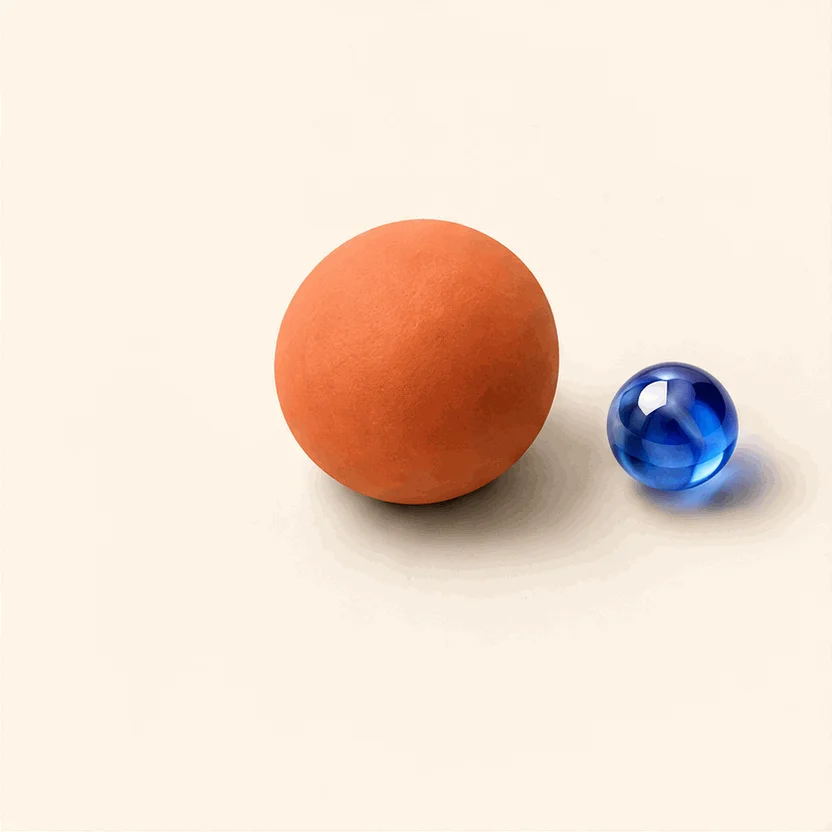
Animated GIFs
Select GIF and describe the motion to create a short animation. Frame count, playback speed and size are set automatically. Add a reference image if needed.
Best for simple loops, stickers and small web animations.
Read the guideCreate images, edit photos, and make GIFs with OpenAI’s latest image model. Use reference images for consistent results, and pick Flare for speed or Sunburst for quality.
GPT Image 2.6 generates images from text and edits existing images with visual references. The model family also supports transparent backgrounds, animated GIFs and SVG graphics. Start with the output you need, then choose the right settings.
Read the model guide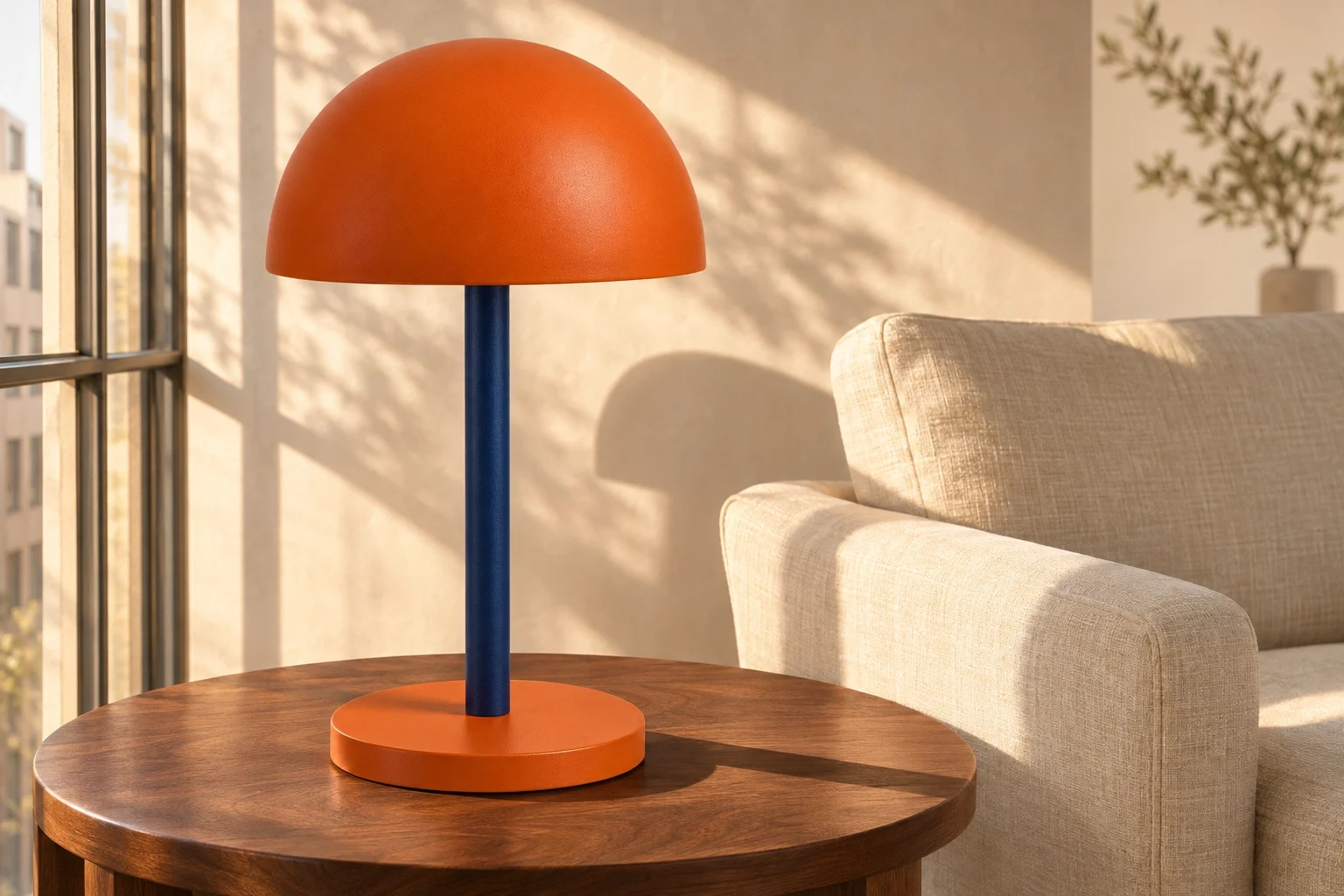
REFERENCE IMAGES
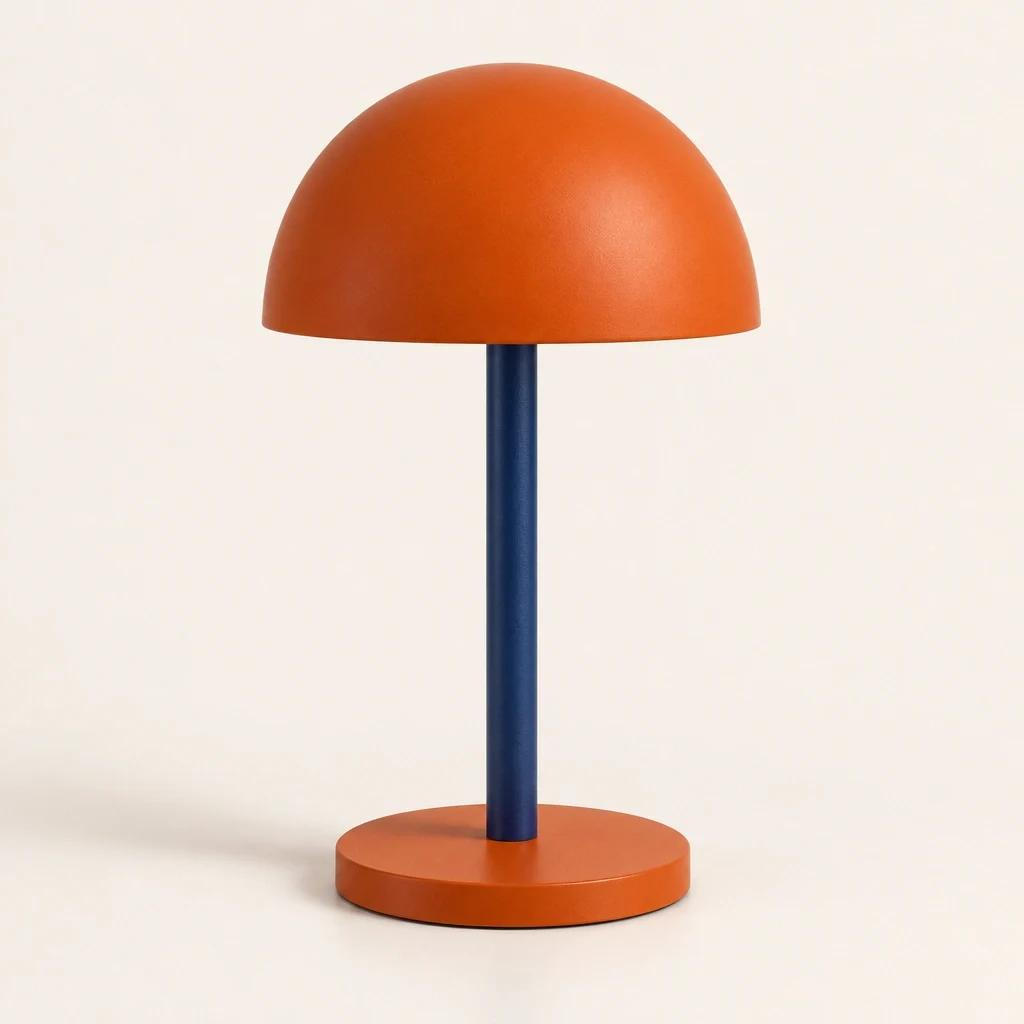
Upload a clear product image and specify the features to preserve. GPT Image 2.6 can use that reference to change the setting while retaining the product’s shape, colors and materials.
For product campaigns, name the details that must stay the same. Check proportions and small markings before publishing.
Try a reference imageIMAGE & TEXT EDITING
GPT Image 2.6 can replace text inside an image and follow instructions about the surrounding design. Quote the exact replacement words and describe which typography, colors and layout to keep.
Short, clearly specified text is easier to review. Check spelling, spacing and line breaks before printing.
Explore editing prompts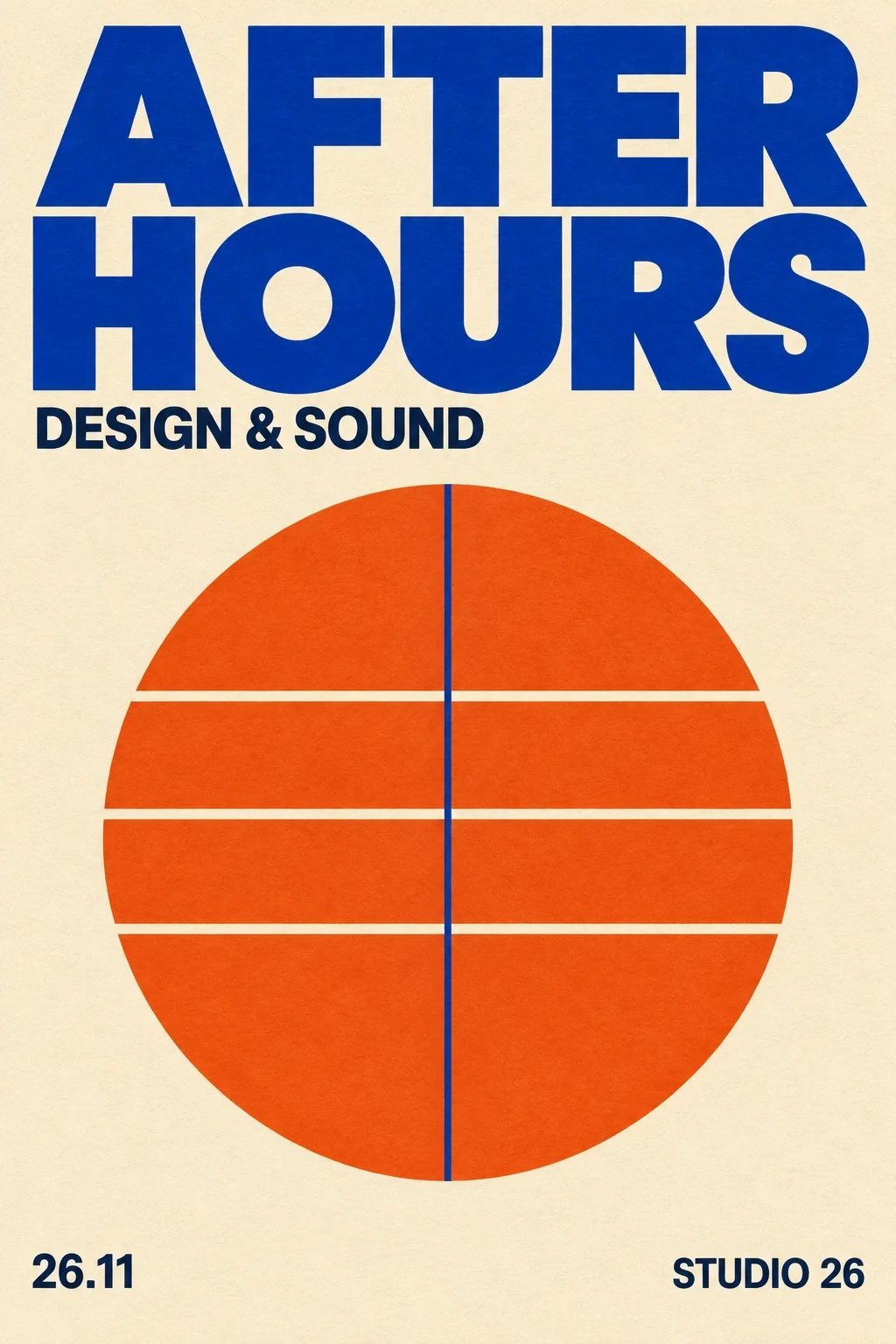
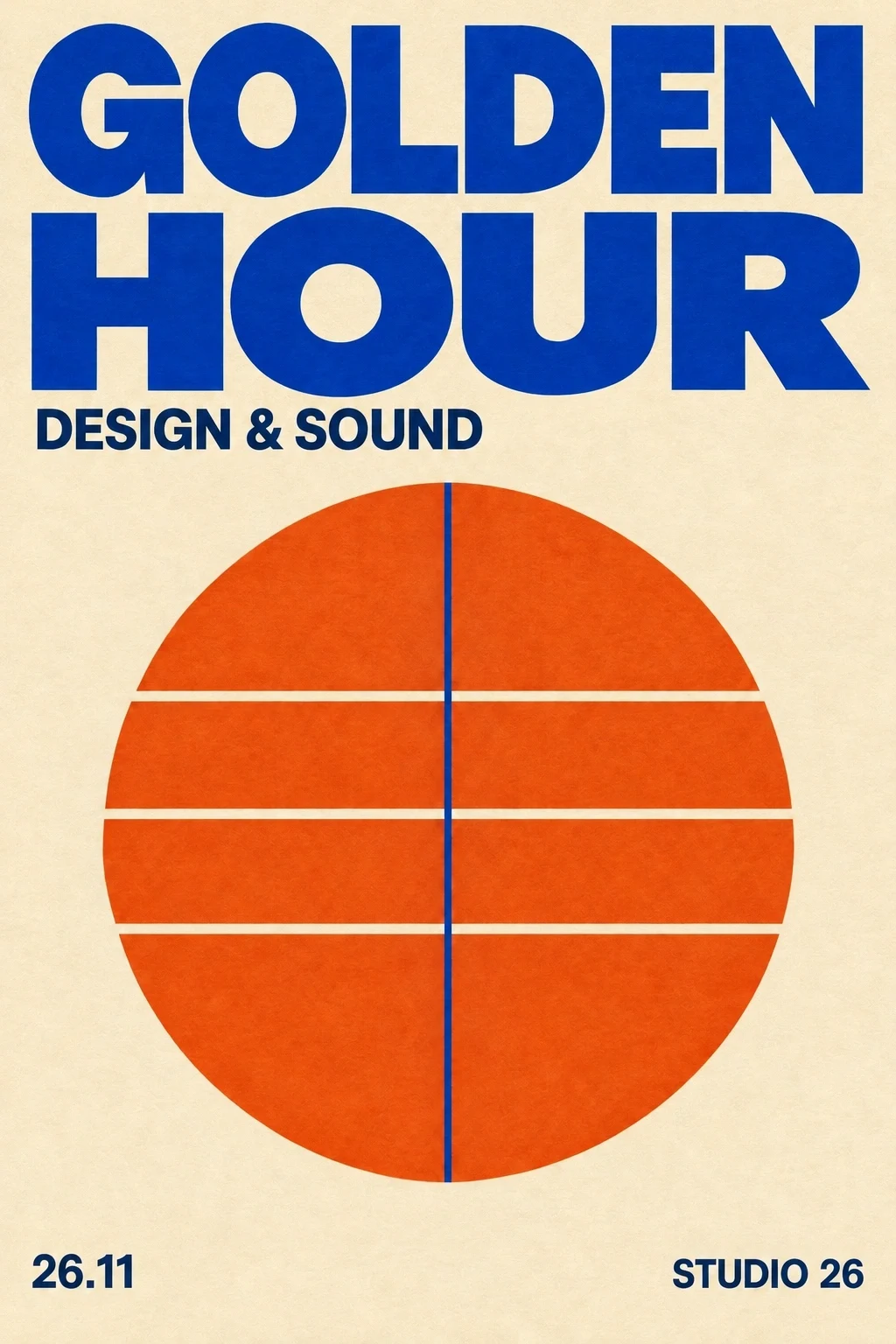
GPT Image 2.6 covers more than a single still image. Choose the output format around the asset’s final use.
Select GIF and describe the motion to create a short animation. Frame count, playback speed and size are set automatically. Add a reference image if needed.
Best for simple loops, stickers and small web animations.
Read the guideGenerate static vector graphics from text. SVG keeps shapes and paths editable and scales without pixelation.
Best for simple icons, badges and flat illustrations.
Read the guideGenerate a subject on a transparent background for use over another design. Describe the silhouette and keep the composition uncluttered.
Use PNG or WebP to retain the alpha channel.
Read the guideUse a separate transparent annotation layer to point to an area or explain a change. Keep the original image clean.
Match the annotation layer to the first image’s dimensions.
Read the guideTWO MODELS. DIFFERENT PRIORITIES.
Choose Flare for fast exploration and everyday images. Choose Sunburst when a detailed composition or demanding edit deserves more time. Both variants can generate and edit images.
| FlareMove from idea to options. | SunburstGive the details more attention. | |
|---|---|---|
| Best starting point | Concepts, social posts and quick revisions | Product visuals, detailed compositions and final edits |
| Workflow | Try several directions, then refine one | Start with a specific brief and clear references |
| Quality control | Low, Medium or High | Low, Medium or High |
Yes. Quality is a separate choice from Flare or Sunburst. Choose Low for a draft, Medium for routine work and High for a final asset with more rendering detail. Resolution controls output dimensions.
Your credit cost appears before generation. Resolution, quality and reference images affect the total.
See plans and creditsName the subject, setting and intended use. Add composition, lighting and exact text only when they matter.
Add a reference for a specific product, character or style. State which features should stay unchanged.
Inspect the image at its intended size. Change one instruction at a time and reuse the best result as a reference.
GPT Image 2.6 is an OpenAI image model family with Flare and Sunburst variants. The models create images from text and edit images with references. Flare emphasizes fast iteration; Sunburst is designed for more demanding visual work.
Write the image you want. Add a reference when the details need to stay familiar.